The previous post laid out the basics for creating windowing (GUI) apps in Python using the tkinter (Tk Interface) module. The module has been part of the standard library since Python versions 2.7 and 3.1.
In this post, as a small seasonal gift, I’ll start presenting a working GUI application — a script-driven pre-fix calculator with variables. Between the calculator code and its window code, there is too much for one post, so there will be (at least) a second part next week.
When run, the app looks like this:
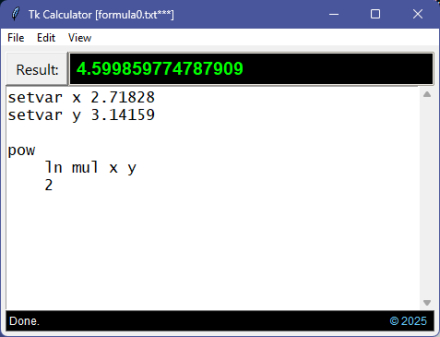
The script shown:
setvar x 2.71828
setvar y 3.14159

power
    ln mul x y
    2
Uses pre-fix notation (and thus needs no parentheses) to implement this bit of math:

The first two lines set variables, x and y, to 2.71828 and 3.14159 respectively. The fourth line sets up an exponential expression (power operator); the fifth line takes the natural log of their product, and the last line provides the exponent (2). The result, 4.599859774787909, is displayed in the black text field above the script.
Pre-fix notation puts the operator before any arguments it processes. For example:
add 2 5
The add operator expects two terms to sum and, in this case, finds 2 and 5. So, this is a valid pre-fix expression, and it has the value 7. More complex expressions don’t require parentheses because there is no ambiguity. For example, consider:
sqrt
    mul
        add
            2
            5
        add
            3
            log10
                7
The sqrt (square root) operator expects a single value, so it evaluates the mul operator. The mul operator expects two values, so it first processes the first add. Which expects two values and finds 2 and 5 (more correctly, it evaluates the next two terms which evaluate respectively to 2 and 5). It has its values, so it sums and returns 7, which provides the first value for the mul operator. Wanting a second value, the mul operator evaluates the second add. Which expects two values and finds 3 and the log10 operator. Which expects a value and finds 7, so it returns log₁₀(7)≈0.845 as the second value for the add operator. Which can now sum its values and return ~3.845, providing the second value for the mul operator. Which can now do 7×~3.845=~26.915686, providing a value for the sqrt operator.
The sqrt operator, which kicked off the chain of evaluations, can now calculate and return the final result: 5.188032987568583.
Indentation can be helpful in making clear which values go with which operators:
sqrt
mul
add
2
5
add
3
log10
7
Breaking it down this far is extreme, but it illuminates the inherent tree structure of expressions. (The other two modes, post-fix and in-fix, create similar trees but with a different shape.) Any valid expression has a tree structure associated with it.
Lastly, in the first formula above, the first two lines (with the setvar operator) are each separate expressions and each returns a value. A third expression begins with the power operator on the fourth line. The three tree structures look like this:
setvar
    x
    2.71828

setvar
    y
    3.14159

power
    ln
        mul
            x
            y
    2
The engine returns the last value as the result (but see below for viewing all results).
The app works like a small Windows Notepad. It’s mainly a text area in which the user writes a simple formula script. The usual file menu allows loading and saving scripts:
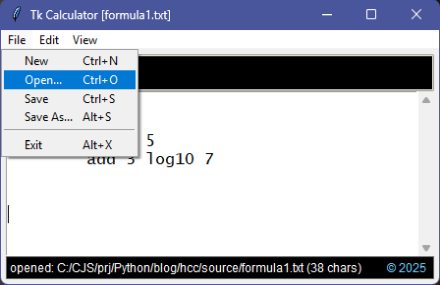
The File menu provides the standard options. The user either starts with a blank textbox and enters a script or loads a saved one and clicks the [Result] button (or presses F5). The app parses the script into a string of tokens and passes that string to an engine that executes the code. More on that when we look at the code.
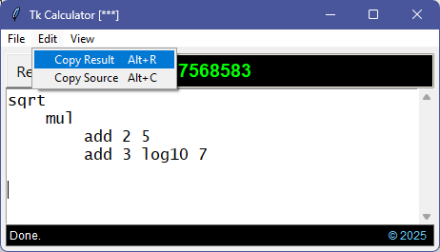
The Edit menu allows copying the result or source text to the clipboard.
Note that nothing prevents the user from selecting all the result or source text (either with the mouse or by clicking in and typing Ctrl+A) and then typing Ctrl+C to accomplish the same thing. The menu items and their associated accelerator keys just make it easier (and we’ll see how easy it is to do in the code).
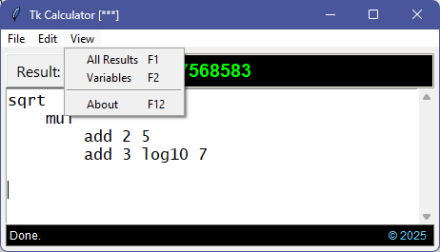
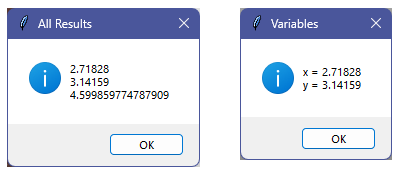
The View menu lets the user see all the results produced (earlier results will usually be the value of setvar operations, but there are other possibilities). The first, F1, shows all results in order. The second, F2, shows any variables created.
That’s all there is to the operation of the app. Type a formula and evaluate it for an answer. The code implements a variety of math functions along with a number of potentially useful constants (like pi and e). The design makes it easy to add additional functions or constants.
We’ll return to this when we look at the calculator code. In the next section we look at the code implementing the window shell.
A shell is really what the window app is. The calculator code is well-separated from the window code, so the window app can potentially support other simple script languages implementing other simple tasks. To illustrate this, later I’ll implement a simple word-counter to replace the calculator parsing and execution code:
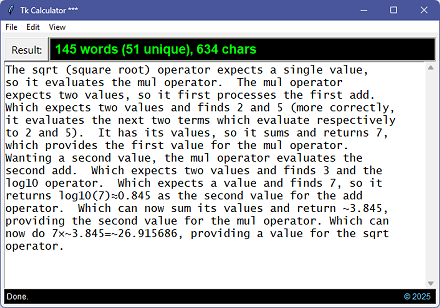
The possibilities are only limited by your imagination.
To make the app nice to use, we’d like it to remember its previous size and location on the screen. That requires saving that information somewhere and reloading it when the app starts. There are several ways to save a program’s state, but the simplest might be to use a file. There are several types of files, but the simplest are text files. There are several types of text files, but one simple (and popular) one, especially in Python, is a JSON file. So, let’s do that:
002| import json
003|
004| class Configuration:
005| “””Application Configuration class.
005|
005| Loads and saves application configuration parameters from a JSON
005| file. Ensures reasonable defaults even if JSON file doesn’t exist
005| or does exist but without required parameters.
005|
005| Attributes:
005| filename name of configuration file
005| cfg dictionary of configuration parameters
005|
005| Properties:
005| window the “window” dictionary section
005| options the “options” dictionary section
005|
005| Methods:
005| save save the configuration to its JSON file
005| “””
006|
007| def __init__ (self, filename=‘tk_calc.json’):
008| ”’New Configuration instance.”’
009| self.filename = filename
010| self.cfg = {}
011|
012| # If a config file exists, load it…
013| if path.exists(self.filename) and path.isfile(self.filename):
014| fp = open(self.filename, mode=‘r’, encoding=‘utf-8’)
015| try:
016| self.cfg = json.load(fp)
017| except:
018| raise
019| finally:
020| fp.close()
021|
022| # Ensure we have the required properties…
023| if ‘version’ not in self.cfg:
024| self.cfg[‘version’] = 1
025|
026| if ‘window’ not in self.cfg:
027| self.cfg[‘window’] = {}
028|
029| if ‘x’ not in self.cfg[‘window’]:
030| self.cfg[‘window’][‘x’] = 200
031| if ‘y’ not in self.cfg[‘window’]:
032| self.cfg[‘window’][‘y’] = 100
033| if ‘w’ not in self.cfg[‘window’]:
034| self.cfg[‘window’][‘w’] = 460
035| if ‘h’ not in self.cfg[‘window’]:
036| self.cfg[‘window’][‘h’] = 240
037| if ‘min.w’ not in self.cfg[‘window’]:
038| self.cfg[‘window’][‘min.w’] = 220
039| if ‘min.h’ not in self.cfg[‘window’]:
040| self.cfg[‘window’][‘min.h’] = 100
041|
042| if ‘options’ not in self.cfg:
043| self.cfg[‘options’] = {}
044|
045| if ‘result.font’ not in self.cfg[‘options’]:
046| self.cfg[‘options’][‘result.font’] = [“Arial”,14,“bold” ]
047| if ‘source.font’ not in self.cfg[‘options’]:
048| self.cfg[‘options’][‘source.font’] = [“Courier New”,13]
049|
050| def __repr__ (self):
051| ”’Debug string.”’
052| return f’<{type(self).__name__} @{id(self):012x}>‘
053|
054| @property
055| def window (self): return self.cfg[‘window’]
056|
057| @property
058| def options (self): return self.cfg[‘options’]
059|
060| def save (self):
061| ”’Save the current configuration.”’
062| fp = open(self.filename, mode=‘w’, encoding=‘utf-8’)
063| try:
064| json.dump(self.cfg, fp, indent=4, separators=(‘,’, ‘:’))
065| except:
066| raise
067| finally:
068| fp.close()
069|
The code is pretty simple (and documented). A new instance loads the settings from the JSON file (if the file exists — lines #12 to #20). Then the configuration is checked to ensure expected options exist (lines #22 to #48).
Two properties, window and options, make it easier to access the two groups of settings. A save method writes the settings back to the JSON file.
We test the class:
002|
003| if __name__ == ‘__main__’:
004| print()
005| cfg = Configuration()
006| print(cfg)
007| print(cfg.window)
008| print()
009|
Which when run prints:
<Configuration @01f919da4ec0>
{'x':200, 'y':100, 'w':460, 'h':240, 'min.w':220, 'min.h':100}
Assuming the expected file, nominally tk_calc.json, does not exist (or does but still has the default settings). You can, of course, arrange for the Configuration class to use a different filename or look for the file in a special location other than the current working directory (presumably the same one as the app).
Now we’ll look at the window shell application. It’s long, so I’ll break it into sections, starting with the class’s DOC text:
Tk Calculator Application class.

Implements a multi-line textbox for a user script and delegates
to a backend calculator (or other engine) to execute the script.

Create a new Application:
    app = Application(file='', mode='calc')

    if file is provided, calculator loads named file
    if mode is provided, calculator loads named mode

Attributes:
    filename            name of current source file
    mode                type of calculator to be
    dirty               current textbox text has been modified
    nofile              no file loaded or save-as
    config              Configuration object
    calc                Calculator object
    root                Tk root
    result              Tk string variable for result textbox
    output              Tk Entry for result display
    source              Tk ScrolledText for source text
    status              Tk Label for status results
    mbar                Tk Menu for menubar
    <various>           other Tk widgets used in app

Methods:
    calculate           execute the script
    open_source_file    open and load a source code file
    load_source_file    load a source code file into Textbox
    save_source_file    save the Textbox text to a text file
    update_title        update the window title (with new filename)
    update_status       write to the result
    file_new            reset everything
    file_open           open a source file
    file_save           save current source to file
    file_save_as        save current source to a new file
    copy_source         copy all source text to clipboard
    copy_result         copy current result to clipboard
    view_results        view all results (incl intermediate ones)
    view_variables      view current variables
    view_operators      view calculator operators
    about               about this application
    txt_keypress        textbox key handler
    app_keypress        application key handler
    app_exit            destroy application window
    _create_widgets     create and place the window widgets
    _create_menubar     create the menubar
As you see, lots of properties and methods.
Here’s the first part (with the above DOC text removed for clarity):
002| import tkinter as tk
003| import tkinter.ttk as ttk
004| import tkinter.messagebox as msgbox
005| import tkinter.filedialog as dialog
006| from tkinter.scrolledtext import ScrolledText
007| from calc import Calculator
008| from calc_wdw import Configuration
009|
010| # Keypress Flags
011| KEYPRESS_SHIFT = 0x00001
012| KEYPRESS_CTRL = 0x00004
013| KEYPRESS_ALT = 0x20000
014| KEYPRESS_EXT = 0x40000
015|
016| AboutText = ”’\
016| Tk Calculator.
016|
016| A little demo of Python’s Tk suite
016| for making windows apps. (As well
016| as being a demo of a script-driven
016| pre-fix math calculator.)
016|
016| © Wyrd Smythe December 2025
016| ”’
017|
018| class Application:
019| “””Tk Calculator Application class.”””
020|
021| def __init__ (self, file=”, mode=‘calc’):
022| ”’New Application instance.”’
023| self.filename = file
024| self.mode = mode
025| self.dirty = False
026| self.nofile = True
027|
028| # Load configuration…
029| self.config = Configuration()
030|
031| # Does the “calculation”…
032| self.calc = Calculator()
033|
034| # Build the window…
035| self._create_widgets()
036| self._create_menubar()
037| # Show ourselves…
038| self.root.deiconify()
039| # Load’m if ya got’m…
040| if self.filename:
041| self.open_source_file()
042| # Set focus…
043| self.update_title()
044| self.update_status(f’Mode: {self.mode}‘, ‘#7fffaf’)
045| self.source.focus()
046|
This imports what we need imported (lines #1 to #8), defines some global variables we’ll need (lines #10 to #16), and starts the Application class definition (line #18).
The only method shown here is the initialization method for new instances (lines #21 to #45). It saves the two passed parameters, file and mode and sets two file-related flags (lines #23 to #26). Then it creates a Configuration instance and a Calculator instance (lines #28 to #32). The Configuration instance provides application settings in self.config. The Calculator instance in self.calc will handle everything related to “calculating” the “source code”. (We won’t get to the calculator until next week.)
Lines #35 and #36 call methods that build the window. Line #38 displays the newly built window. Lines #39 to #41 load a source code file if a filename was provided (via the file parameter). Finally, lines #43 to #45 update the window title (with the possible filename), update the status bar, and set the app focus to the source code textbox.
At this point, the app is initialized and ready to go.
Let’s jump to the bottom of the code and look at _create_widgets:
310| ”’Create and place the window widgets.”’
311|
312| # Create the window…
313| self.root = tk.Tk()
314| self.root.withdraw() # hide until we’re ready
315|
316| # Set window size and location…
317| xpos = self.config.window[‘x’]
318| ypos = self.config.window[‘y’]
319| xdim = self.config.window[‘w’]
320| ydim = self.config.window[‘h’]
321| self.root.geometry(f’{xdim}x{ydim}+{xpos}+{ypos}‘)
322|
323| # Set minimum window size…
324| minx = self.config.window[‘min.w’]
325| miny = self.config.window[‘min.h’]
326| self.root.minsize(minx, miny)
327|
328| # Bind some important keys…
329| self.root.bind(‘<Escape>’, self.app_exit)
330| self.root.bind(‘<F5>’, self.calculate)
331| self.root.bind(‘<KeyPress>’ , self.app_keypress)
332|
333| # Handle windows theme issues…
334| self.style = ttk.Style(self.root)
335| self.style.theme_use(‘clam’)
336|
337| # Tk variable for result text…
338| self.result = tk.StringVar()
339|
340| # Main window…
341| self.wndw = tk.Frame(self.root, bg=‘#666666’, relief=‘solid’)
342| self.head = tk.Frame(self.wndw, bg=‘#996633’, relief=‘sunken’)
343| self.main = tk.Frame(self.wndw, bg=‘#336699’, relief=‘sunken’)
344| self.sbar = tk.Frame(self.wndw, bg=‘#999999’, relief=‘sunken’)
345|
346| # Header Bar…
347| self.label1 = tk.Button(self.head)
348| self.label1.config(text=‘Result:’)
349| self.label1.config(font=(‘Segoe UI’,12))
350| self.label1.config(justify=‘left’)
351| self.label1.config(command=self.calculate)
352| self.label1.pack(
353| side=‘left’, anchor=‘e’,
354| padx=0, pady=0, ipadx=4, ipady=0
355| )
356|
357| self.style.configure(‘TEntry’,
358| fieldbackground=‘#000000’,
359| background=‘#000000’, foreground=‘#00ff00’,
360| padding=(7,0)
361| )
362| self.output = ttk.Entry(self.head)
363| self.output.config(font=(‘Segoe UI Variable’,14,‘bold’))
364| self.output.config(justify=‘left’)
365| self.output.config(textvariable=self.result)
366| self.output.state([‘readonly’])
367| self.output.pack(
368| side=‘right’, anchor=‘w’,
369| fill=‘both’, expand=True, padx=0, pady=0
370| )
371|
372| # Text Area…
373| self.source = ScrolledText(self.main)
374| self.source.config(wrap=tk.WORD, tabs=’30p’)
375| self.source.config(font=(‘Lucida Sans Typewriter’,13))
376| self.source.bind(‘<KeyPress>’, self.txt_keypress)
377| self.source.pack(side=‘top’, fill=‘both’, expand=True)
378|
379| # Status Bar…
380| self.status = tk.Label(self.sbar)
381| self.status.config(background=‘#000000’)
382| self.status.config(foreground=‘#ffffff’)
383| self.status.config(relief=‘flat’)
384| self.status.config(font=(‘Segoe UI Variable’,9))
385| self.status.config(anchor=‘w’)
386| self.status.pack(side=‘left’, fill=‘x’, expand=True, ipadx=4)
387|
388| self.copyright = tk.Label(self.sbar)
389| self.copyright.config(text=“© 2025”)
390| self.copyright.config(background=‘#000000’)
391| self.copyright.config(foreground=‘#66ccff’)
392| self.copyright.config(relief=‘flat’)
393| self.copyright.config(font=(‘Segoe UI Variable’,9))
394| self.copyright.config(justify=‘center’)
395| self.copyright.pack(side=‘right’, ipadx=4)
396|
397| # Pack’m in…
398| self.wndw.pack(side=‘top’, fill=‘both’,expand=True, padx=5,pady=5)
399| self.sbar.pack(side=‘bottom’, fill=‘x’, padx=1,pady=1)
400| self.head.pack(side=‘top’, fill=‘x’)
401| self.main.pack(side=‘top’, fill=‘both’,expand=True)
402|
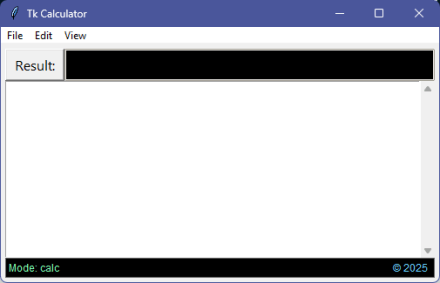
Refer to the screen grabs above to see the window created by this code. Line #313 calls tk.Tk to get things rolling and in the next line hides the window the call creates.
Lines #316 to #326 get the settings for window size and location and use them to set the window’s geometry and minimum size. Lines #328 to #331 bind important keypress events to three methods that will handle them.
Lines #333 to #335 set the Tk theme (because the default ignores certain configuration options). Line #338 creates a Tk variable that we’ll later bind to the result textbox.
Lines #340 to #344 create and configure the main window frame and three sub-frames that fit inside it for the result bar across the top, the main text window, and the status bar across the bottom. Note how line #365 binds the Tk String variable in line #338 to the result textbox. Now setting the variable also sets the text in the widget. Line #366 makes the textbox read-only, but if the user did type text into the textbox, it would be available through the variable.
Lines #346 to #370 create and configure the widgets in the result bar. Lines #372 to #377 create and configure the textbox widget that will contain source code. Lines #379 to #395 create and configure label widgets for the status bar.
Lastly, lines #397 to #401 pack the widgets in their respective frames.
Here is the _create_menubar method:
404| ”’Create the menubar.”’
405| # MenuBar…
406| self.mbar = tk.Menu(self.root)
407|
408| kw = lambda t,u,a,c: dict(
409| label=t, underline=u, accelerator=a, command=c
410| )
411| # File…
412| self.mbarFile = tk.Menu(self.mbar, name=‘fileMenu’, tearoff=0)
413| self.mbarFile.add_command(**kw(‘New’,0,‘Ctrl+N’,self.file_new))
414| self.mbarFile.add_command(**kw(‘Open…’,0,‘Ctrl+O’,self.file_open))
415| self.mbarFile.add_command(**kw(‘Save’,0,‘Ctrl+S’,self.file_save))
416| self.mbarFile.add_command(**kw(‘SaveAs’,5,‘Alt+S’ ,self.file_saveas))
417| self.mbarFile.add_separator()
418| self.mbarFile.add_command(**kw(‘Exit’, 1, ‘Alt+X’, self.app_exit))
419|
420| # Edit…
421| self.mbarEdit = tk.Menu(self.mbar, name=‘editMenu’, tearoff=0)
422| self.mbarEdit.add_command(**kw(‘Result’,0,‘Alt+R’,self.copy_result))
423| self.mbarEdit.add_command(**kw(‘Source’,5,‘Alt+C’,self.copy_source))
424|
425| # View…
426| self.mbarView = tk.Menu(self.mbar, name=‘viewMenu’, tearoff=0)
427| self.mbarView.add_command(**kw(‘All Results’,0,‘F1’,self.view_res))
428| self.mbarView.add_command(**kw(‘Variables’,0,‘F2’,self.view_vars))
429| self.mbarView.add_separator()
430| self.mbarView.add_command(**kw(‘Operators’,0,‘F3’,self.view_ops))
431| self.mbarView.add_separator()
432| self.mbarView.add_command(**kw(‘About’,0, ‘F12’, self.about))
433|
434| # Add to MenuBar…
435| self.mbar.add_cascade(label=‘File’, menu=self.mbarFile, underline=0)
436| self.mbar.add_cascade(label=‘Edit’, menu=self.mbarEdit, underline=0)
437| self.mbar.add_cascade(label=‘View’, menu=self.mbarView, underline=0)
438|
439| # Add MenuBar to window…
440| self.root[‘menu’] = self.mbar
448|
Note that the code above shortens a few parts to make them fit. The code in the ZIP file (available next week) is the correct version.
The previous post went over menus in enough detail that there’s not much to say here.
Now we’ll go back and see the middle parts of the code. Firstly, two critical methods, app_exit and calculate:
048| ”’Destroy application window.”’
049| if self.dirty:
050| ansr = msgbox.askyesno(‘Text is not saved.’, ‘Save first?’)
051| if ansr:
052| self.file_save()
053| return
054|
055| # Update window size and location…
056| geom = self.root.wm_geometry()
057| dims,xpos,ypos = geom.split(‘+’)
058| xdim,ydim = dims.split(‘x’)
059| self.config.window[‘x’] = int(xpos)
060| self.config.window[‘y’] = int(ypos)
061| self.config.window[‘w’] = int(xdim)
062| self.config.window[‘h’] = int(ydim)
063| self.config.options[‘lastfile’] = self.filename
064|
065| # Save configuration…
066| self.config.save()
067|
068| # Destroy the window (ends mainloop)…
069| self.root.destroy()
070|
071| def calculate (self, *args):
072| ”’Execute the script.”’
073| self.update_status(‘Calculating…’, ‘#7f7f7f’)
074| self.calc.reset()
075|
076| # Get the source text…
077| text = self.source.get(‘1.0’,‘end’)
078| if not text:
079| msgbox.showwarning(‘No text.’, ‘Nothing to calculate.’)
080| return
081|
082| try:
083| # Parse text into tokens…
084| tokens = self.calc.parse_text(text)
085|
086| # CALCULATE…
087| answer = self.calc.execute(tokens)
088|
089| except Exception as e:
090| self.result.set(‘#ERROR#’)
091| self.update_status(e, ‘#ff3322’)
092| else:
093| self.result.set(answer)
094| self.update_status(‘Done.’)
095|
The first method is called when the user selects Exit from the File menu, or presses Alt+X, or presses the Escape key. We’ll see how the app handles Alt+X below. Recall how line #329 in _create_widgets bound the Escape key to the app_exit method.
Note how app_exit first checks the self.dirty flag to see if the source text should be saved (lines #49 to #53). It also gets the window’s current geometry and writes it to the configuration object (lines #55 to #63) before saving the settings JSON file.
Note also that app_exit takes optional positional parameters. No parameters are passed for menu or button bindings, but an event object is passed to methods that handle keypress events. We don’t care about the event here but do have to provide the possibility of receiving one.
The calculate method is called when the user presses F5 (recall line #330 in _create_widgets) or clicks the app’s [Result] button (created in lines #347 to #355 of _create_widgets). Most of the work is delegated to the calculator object, which handles the text parsing into tokens as well as executing those tokens. The call to the calculator is wrapped in a try/except to catch any errors due to user input.
Next, three methods concerned with loading and saving source code files:
097| ”’Open and load a source code text file into the Textbox.”’
098| # Open and read file…
099| fp = open(self.filename, mode=‘r’, encoding=‘utf8’)
100| try:
101| text = fp.read()
102| except Exception as e:
103| self.update_status(e, ‘#ff3322’)
104| finally:
105| fp.close()
106|
107| # Load text into textbox…
108| self.load_source_file(text)
109|
110| def load_source_file (self, text):
111| ”’Load a source code text file into the Textbox.”’
112| # Clear…
113| self.calc.reset()
114| self.result.set(”)
115| self.dirty = False
116| self.nofile = False
117| # Load…
118| self.source.delete(‘1.0’, ‘end’)
119| self.source.insert(‘1.0’, text)
120| self.source.edit_modified(0)
121| # Update…
122| self.update_title()
123| self.update_status(f’opened: {self.filename} ({len(text)} chars)‘)
124|
125| def save_source_file (self):
126| ”’Save the Textbox text to a text file.”’
127| text = self.source.get(‘1.0’,‘end’)
128| self.source.edit_modified(0)
129| if not text:
130| msgbox.showwarning(‘No text.’, ‘Nothing to save.’)
131| return
132| fp = open(self.filename, mode=‘w’, encoding=‘utf8’)
133| try:
134| fp.write(text)
135| except Exception as e:
136| self.update_status(e, ‘#ff3322’)
137| finally:
138| fp.close()
139| self.dirty = False
140| self.update_title()
141| self.update_status(f’saved: {self.filename} ({len(text)} chars)‘)
142|
The open_source_file method assumes that self.filename is valid and uses it to open and read a text file. It passes that text to the load_source_file method sets the self.dirty and self.nofile flags, clears the result variable, loads the passed source text into the source textbox, and updates the window title and status bar.
The save_source_file is essentially the counterpart to the load_source_file. It saves the source code text to a file (again assuming self.filename is valie).
Next, a pair of small utility methods for updating the windows title and status bar:
144| ”’Update the window title (with new filename).”’
145| name = f’[{path.basename(self.filename)}]‘ if self.filename else ”
146| flag = ‘***’ if self.dirty else ”
147| self.root.title(f’Tk Calculator {name}{flag}‘)
148|
149| def update_status (self, message, color=‘#ffffff’):
150| ”’Write to the result.”’
151| self.status[‘text’] = message
152| self.status[‘foreground’] = color
153|
The next two sections contain the methods that handle the menu selections. First the File menu suite:
155| ”’Menu: File/New. Reset everything.”’
156| if self.dirty:
157| ansr = msgbox.askyesno(‘Text is not saved.’, ‘Save first?’)
158| if ansr:
159| self.file_save()
160| return
161| # Clear…
162| self.calc.reset()
163| self.result.set(”)
164| self.source.delete(‘1.0’, ‘end’)
165| self.source.edit_modified(0)
166| self.dirty = False
167| self.nofile = True
168| self.filename = ”
169| self.update_title()
170| self.update_status(‘(new)’)
171|
172| def file_open (self):
173| ”’Menu: File/Open.”’
174| if self.dirty:
175| ansr = msgbox.askyesno(‘Text is not saved.’, ‘Save first?’)
176| if ansr:
177| self.file_save()
178| return
179| props = dict(
180| parent=self.root,
181| title=“Select an input file:”,
182| filetypes=[(‘Text files’,‘*.txt’),(‘All files’,‘*’)],
183| defaultextension=‘txt’,
184| initialdir=path.dirname(self.filename),
185| initialfile=path.basename(self.filename),
186| mode=‘r’,
187| )
188| fileobj = dialog.askopenfile(**props)
189| if fileobj:
190| # Remember filename…
191| self.filename = fileobj.name
192| # Load text into textbox…
193| self.load_source_file(fileobj.read())
194|
195| def file_save (self):
196| ”’Menu: File/Save.”’
197| if self.nofile:
198| self.file_save_as()
199| return
200| self.save_source_file()
201|
202| def file_save_as (self):
203| ”’Menu: File/Save As…”’
204| props = dict(
205| parent=self.root,
206| title=“Enter a save-as filename:”,
207| filetypes=[(‘Text files’,‘*.txt’),(‘All files’,‘*’)],
208| defaultextension=‘txt’,
209| initialdir=path.dirname(self.filename),
210| initialfile=path.basename(self.filename),
211| confirmoverwrite=1,
212| )
213| name = dialog.asksaveasfilename(**props)
214| if 0 < len(name):
215| self.filename = name
216| self.nofile = False
217| self.save_source_file()
218|
The four methods have the usual New, Open, Save, and Save As behaviors. It’s in these methods that the self.dirty and self.nofile flags come into play. For instance, if the user selects Save but there isn’t a file loaded, Save jumps to Save As.
The file_open method uses the askopenfile function in the tkinter.filedialog module to handle the dialog and to return the selected file data. There is also an askopenfilename function that only returns a filename. An alternate design uses the latter to get the filename and combines open_source_file and load_source_file into a single method. The functions are split here because I opted to use askopenfile.
The file_save_as method uses the asksaveasfilename function from the same tkinter.filedialog module. Note how these functions allow setting the initial filename and directory along with other parameters.
Here are the other menu selection methods:
220| ”’Menu: Edit/Copy Source.”’
221| txt = self.source.get(‘1.0’,‘end’).strip()
222| if not txt:
223| msgbox.showwarning(‘No source text!’,‘Nothing to copy!’)
224| return
225| self.root.clipboard_clear()
226| self.root.clipboard_append(txt)
227| self.update_status(‘Copied source text to clipboard.’)
228|
229| def copy_result (self):
230| ”’Menu: Edit/Copy Result.”’
231| txt = self.result.get()
232| if not txt:
233| msgbox.showwarning(‘No result text!’,‘Nothing to copy!’)
234| return
235| self.root.clipboard_clear()
236| self.root.clipboard_append(txt)
237| self.update_status(‘Copied result text to clipboard.’)
238|
239| def view_results (self):
240| ”’Menu: View/Results.”’
241| lines = [str(res) for res in self.calc.results]
242| msgbox.showinfo(‘All Results’, ‘\n’.join(lines))
243|
244| def view_variables (self):
245| ”’Menu: View/Variables.”’
246| lines = [f’{n} = {v}‘ for n,v in self.calc.variables.items()]
247| msgbox.showinfo(‘Variables’, ‘\n’.join(lines))
248|
249| def view_operators (self):
250| ”’Menu: View/Operators.”’
251| names = list(sorted(self.calc.opnames()))
252| text = ‘, ‘.join(names)
253| msgbox.showinfo(‘Operators’, f’{text} ({len(names)})‘)
254|
255| def about (self):
256| ”’About this Application.”’
257| msgbox.showinfo(‘About’, AboutText)
258|
Note how easy it is to put text into the Windows clipboard (lines #225 and #226 and #235 and #236). The View menu methods give the user access to some calculator basics.
Lastly, two important methods that handle keypress events for the source code textbox and for the whole app (note that both methods receive an event object with information about the event):
260| ”’Textbox key handler.”’
261| if self.source.edit_modified():
262| if not self.dirty:
263| self.dirty = True
264| self.update_title()
265|
266| def app_keypress (self, evt):
267| ”’Application key handler.”’
268| # Alt key commands…
269| if evt.state & KEYPRESS_ALT:
270| if evt.keysym in [‘C’,‘c’]:
271| self.copy_source()
272| return
273| if evt.keysym in [‘R’,‘r’]:
274| self.copy_result()
275| return
276| if evt.keysym in [‘S’,‘s’]:
277| self.file_save_as()
278| return
279| if evt.keysym in [‘X’,‘x’]:
280| self.app_exit(‘Alt-X’)
281| return
282| return
283| # Control key commands…
284| if evt.state & KEYPRESS_CTRL:
285| if evt.keysym in [‘N’,‘n’]:
286| self.file_new()
287| return
288| if evt.keysym in [‘O’,‘o’]:
289| self.file_open()
290| return
291| if evt.keysym in [‘S’,‘s’]:
292| self.file_save()
293| return
294| return
295| # Various other keys…
296| if evt.keysym == ‘F1’:
297| self.view_results()
298| return
299| if evt.keysym == ‘F2’:
300| self.view_variables()
301| return
302| if evt.keysym == ‘F3’:
303| self.view_operators()
304| return
305| if evt.keysym == ‘F12’:
306| self.about()
307| return
308|
The txt_keypress method (bound to the source textbox in line #376) receives an event for all keypresses seen by the source code textbox. We don’t do anything with the event object; we just use the fact of a keypress to check the state of the textbox (line #261) and set the self.dirty flag if the text has been modified.
The app_keypress method (bound to self.root in line #331) receives an event for all app keypresses. We use the event state and keysym (key symbol) attributes to detect relevant keypresses and dispatch to the methods that handle them.
We launch this app shell window like this:
002|
003| if __name__ == ‘__main__’:
004| print()
005| app = Application()
006| app.root.mainloop()
007| print()
008|
But we need the back-end calculator for it to do anything.
That’s where we’ll pick up next time and finish with a working application.
No ZIP file until next week when we’ve looked at the rest of the code.
∅
 The Hard-Core Coder
ATTENTION: The WordPress Reader strips the style information from posts, which can destroy certain important formatting elements. If you’re reading this in the Reader, I highly recommend (and urge) you to [A] stop using the Reader and [B] always read blog posts on their website.
This post is: Python Tk Calculator App
Pingback: Python Prefix Calculator App | The Hard-Core Coder
Pingback: Tk Calculator App Extra | The Hard-Core Coder